Update Blueprint
Post cluster provision, users can update the blueprint anytime in two (2) approaches:
Approach 1: Blueprint Sync Status
- Login to the controller and click Clusters under Infrastructure
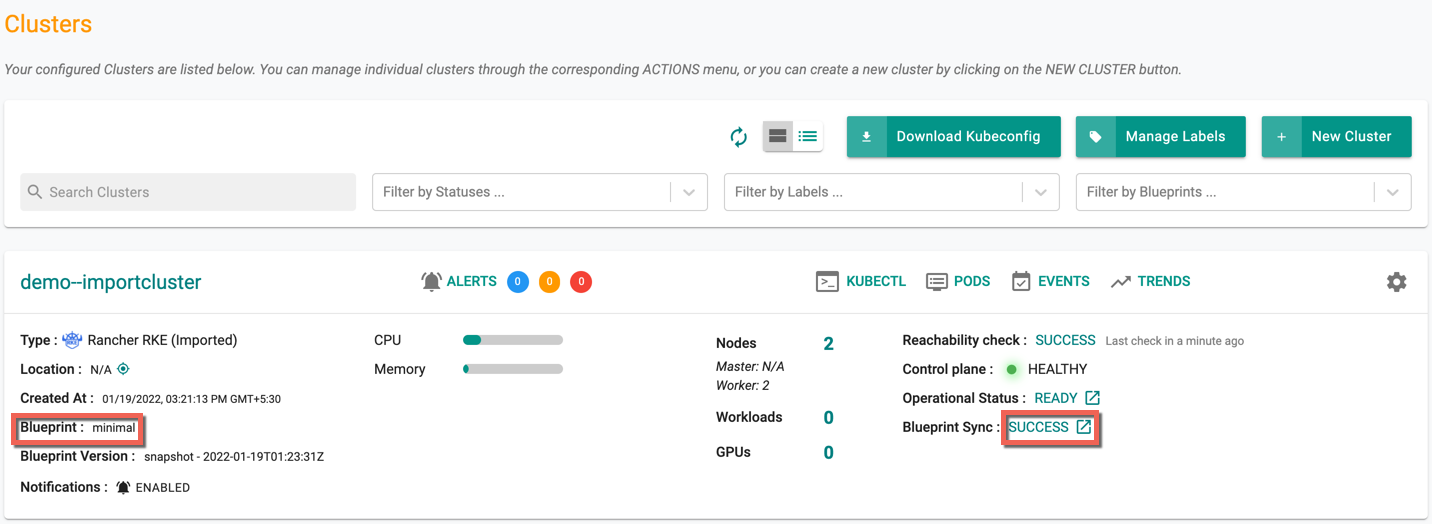
- Select the required cluster and click the Blueprint Sync success status icon
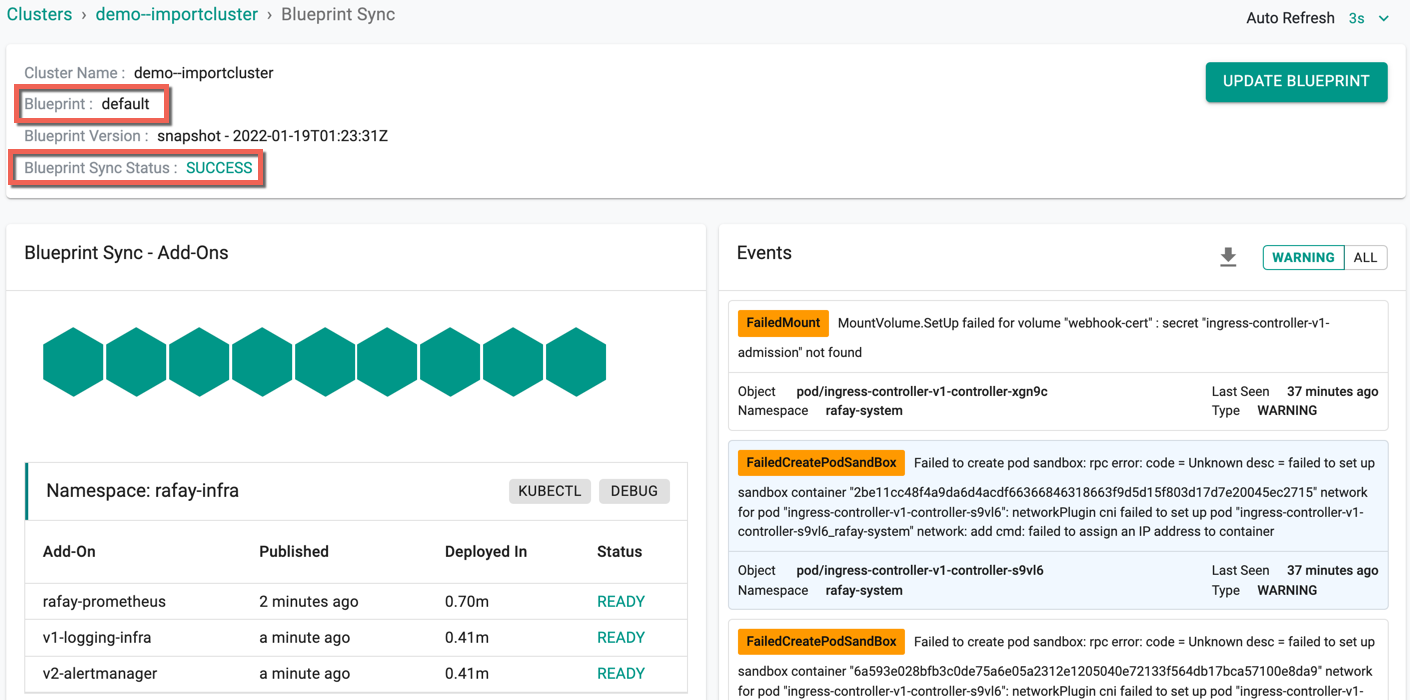
Below is an example of a cluster with minimal Blueprint
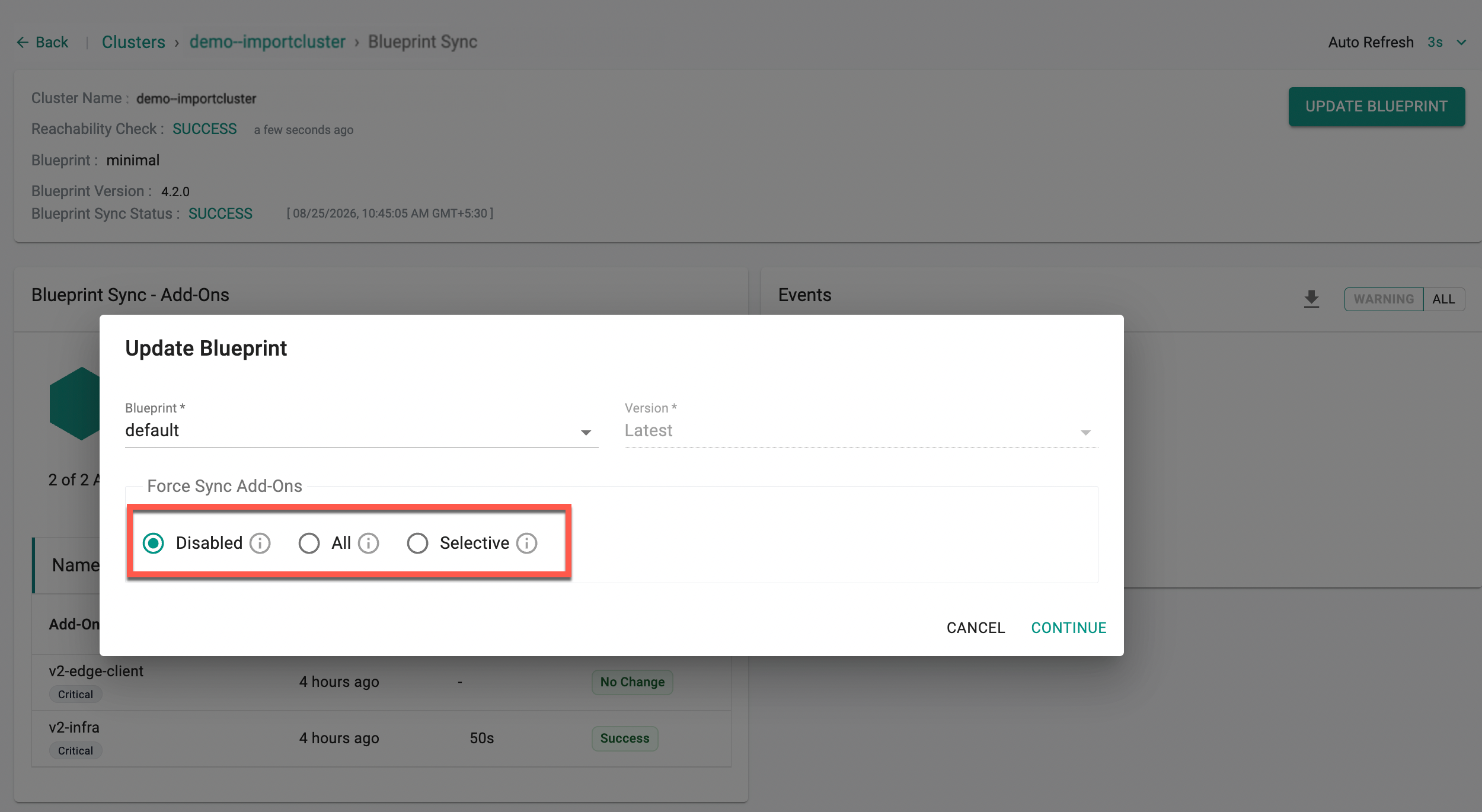
- Click Update Blueprint available at the top right corner of the screen
- Select the required Blueprint (example: default) and Version (if applicable) from the drop-down
- Click Continue
When a user attempts to update a blueprint during an ongoing blueprint sync, the following error occurs:
Blueprint is being synced, please retry after current sync has completed. A force update may leave your cluster in an unpredictable state
The Update Blueprint dialog provides three Force Sync Add-Ons options that give users control over which add-ons get redeployed:
- Disabled: No add-ons are force synced as part of this update; the blueprint update proceeds normally without forcing a redeploy of any add-on.
- All: Triggers the blueprint sync forcefully on the cluster, even if a previous sync is in progress, and redeploys every add-on in the selected blueprint, irrespective of whether the add-on has changed or is already deployed, overriding existing changes.
- Selective: Lets users choose specific add-ons to force sync instead of redeploying the entire blueprint. This is useful when only a subset of add-ons (for example, ones that are in a failed state, or new additions) need to be resynced, without forcing a redeploy of every add-on in the blueprint, which can otherwise take longer, especially with a large number of add-ons. Available add-ons can be picked from a list into a Selected Addons list, with support for filtering and Select All/Clear.
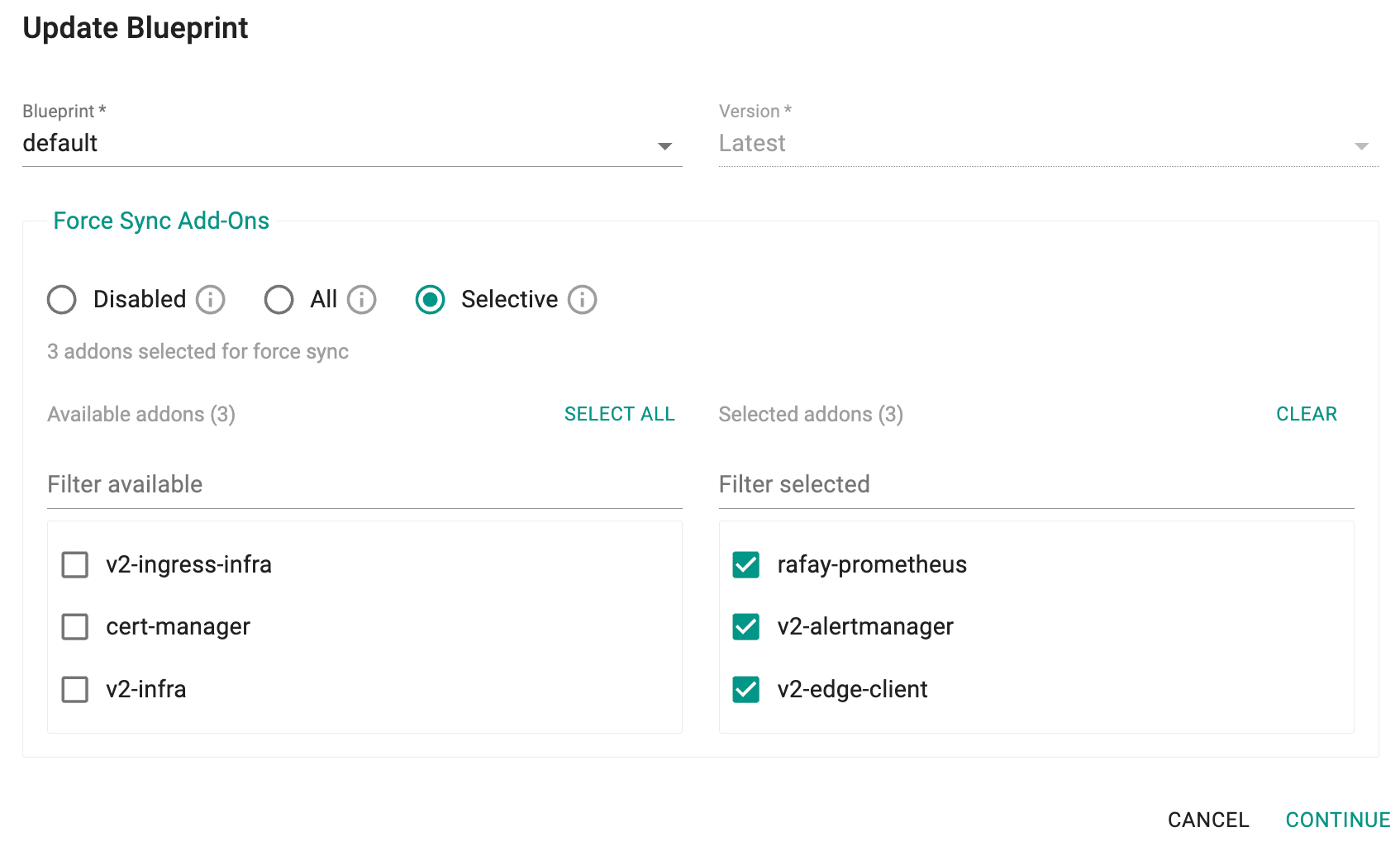
⚠️ Warning: Force sync may leave add-ons of an ongoing sync, if any, in an unpredictable state.
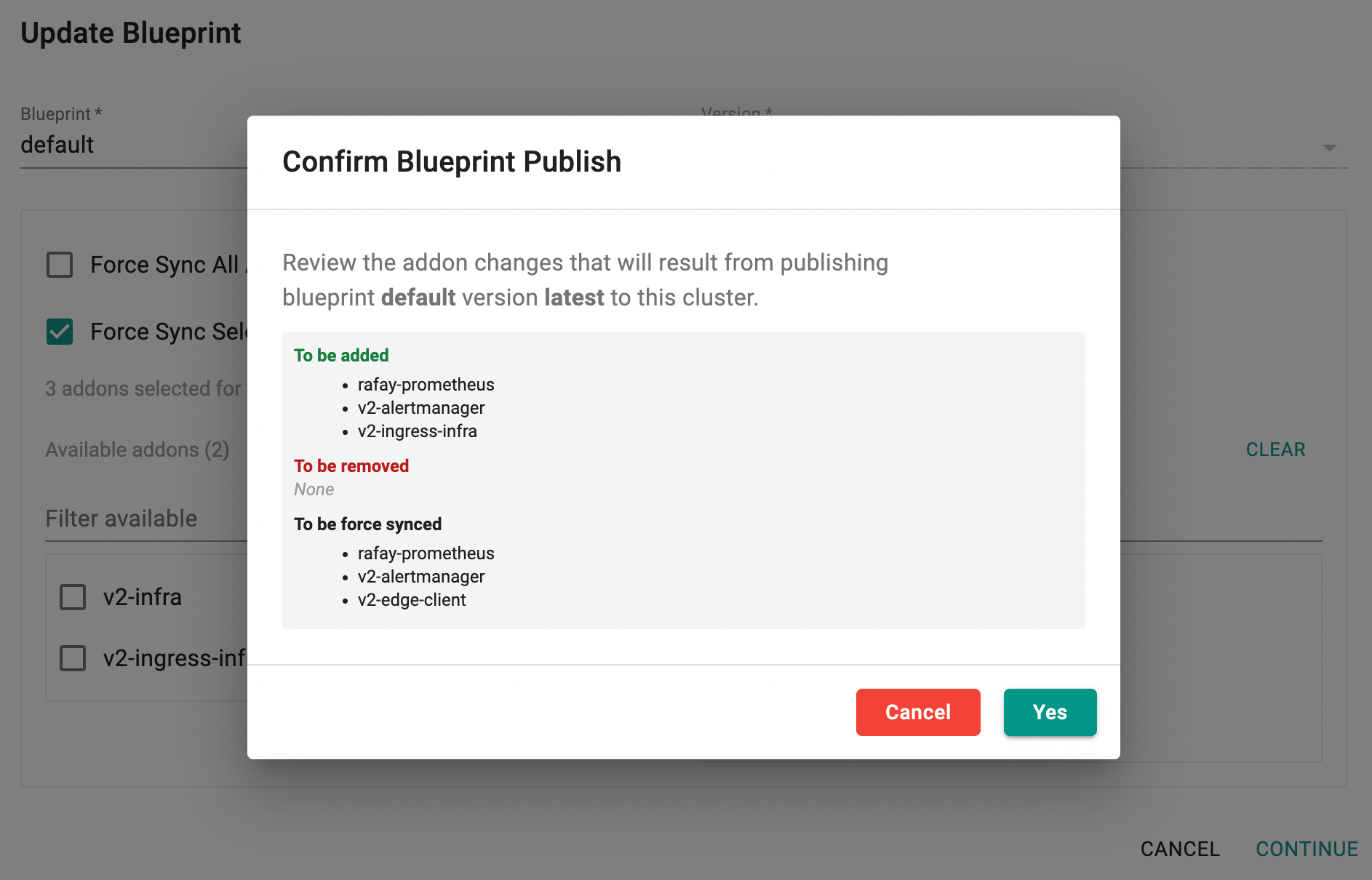
After selecting the Blueprint, Version, and any Force Sync Add-Ons option, click Continue. A Confirm Blueprint Publish dialog appears, summarizing the add-on changes that will result from publishing the selected blueprint and version to the cluster:
- To be added: add-ons that are new to the cluster as a result of the blueprint/version change
- To be removed: add-ons that will be removed as a result of the blueprint/version change
- To be force synced: add-ons that will be redeployed because of the All or Selective Force Sync Add-Ons selection
Review the changes and click Yes to proceed, or Cancel to go back and modify the selections.
Blueprint Sync process begins and shows the status as In Progress
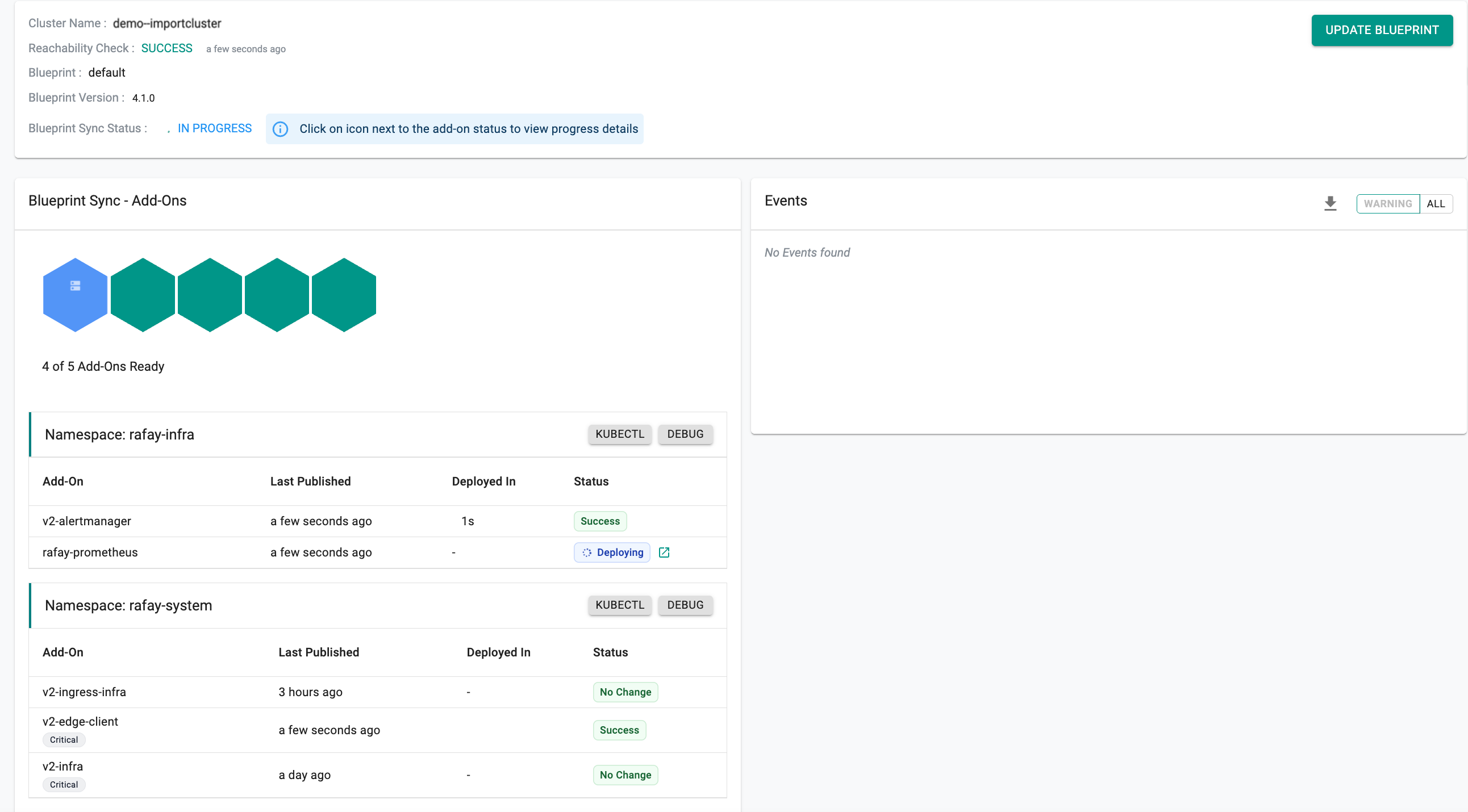
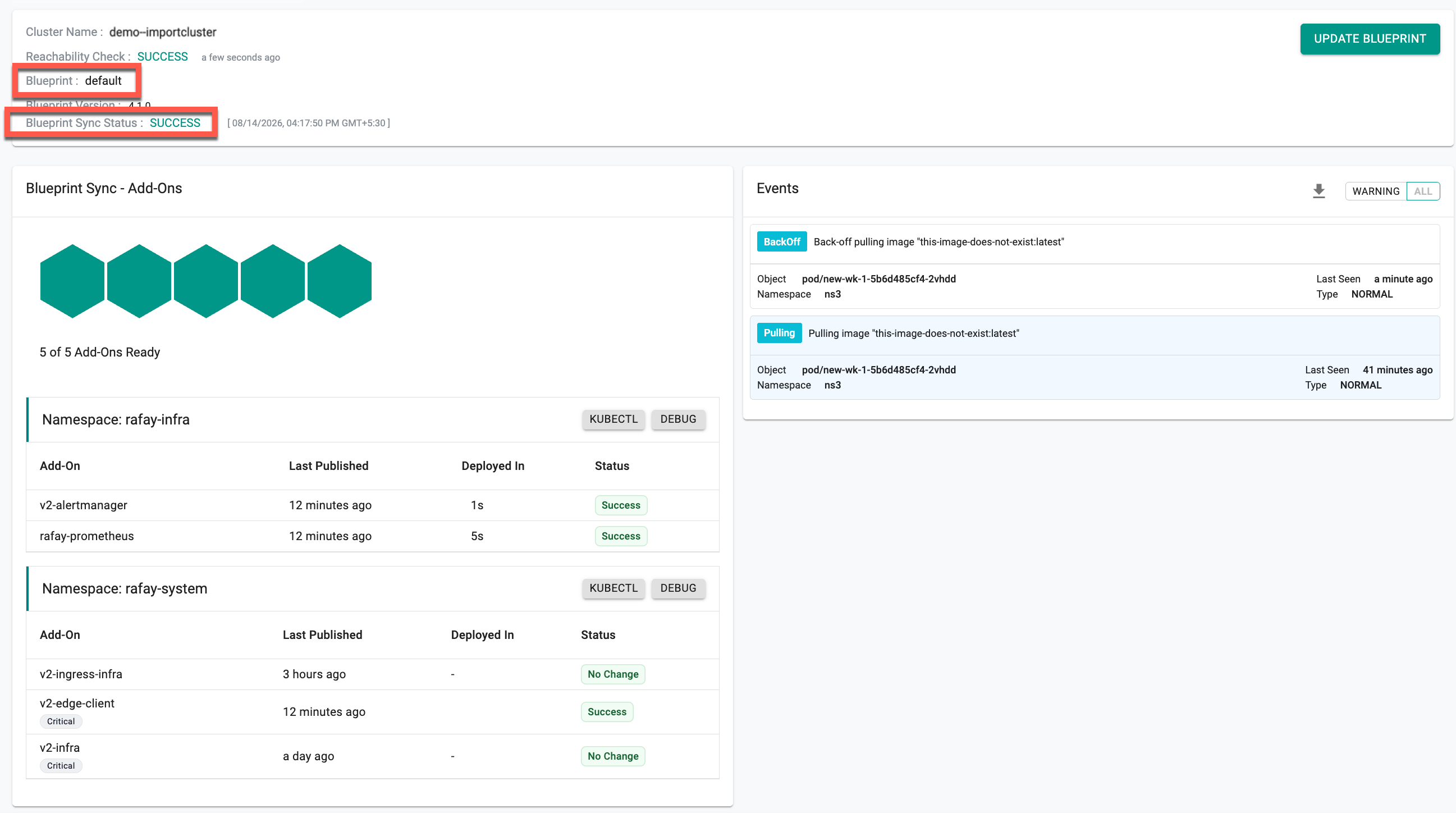
Once the update is complete, the status changes to Success. Users can view the list of Blueprint Sync Add-Ons and Events
Approach 2: Update Blueprint Option
- Login to the controller and click Clusters under Infrastructure
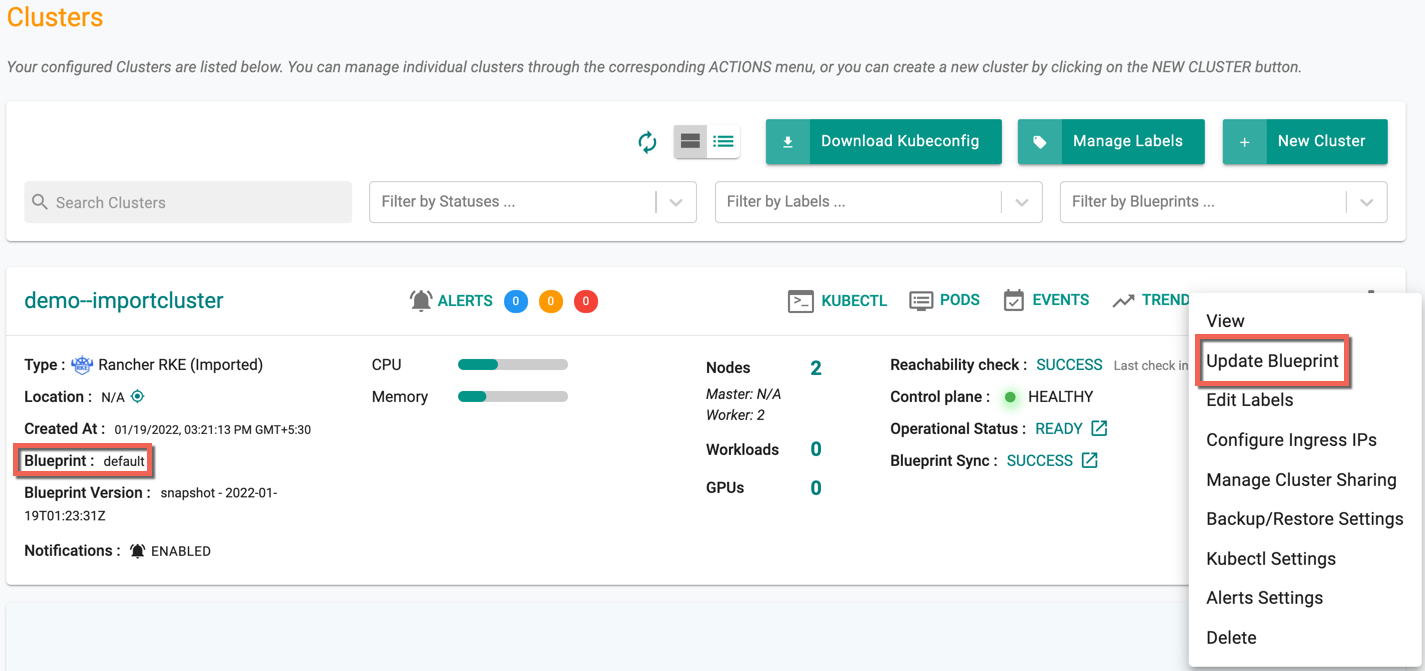
- Select the required cluster and click on the gear icon
- Click Update Blueprint
Below is an example of a cluster with default Blueprint
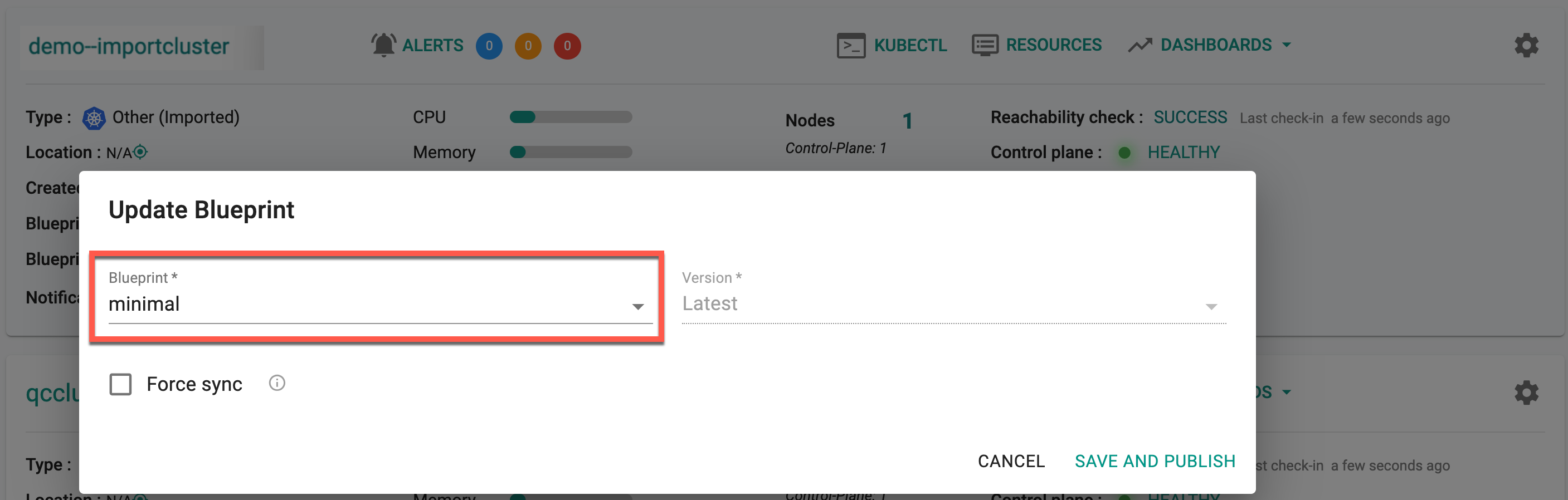
- Select the required Blueprint (example: minimal) and Version (if applicable) from the drop-down
- Optionally, enable All or Selective under Force Sync Add-Ons as described in Approach 1 above
- Click Continue, review the add-on changes in the Confirm Blueprint Publish dialog (add-ons To be added, To be removed, and To be force synced), and click Yes to proceed
Blueprint Sync process begins and once updated, the status shows Success
K8s Resources Deployed by Blueprints
When updating a cluster with a custom blueprint, it is important to understand what Kubernetes resources will be deployed as part of the blueprint. This helps in planning and validating changes before applying them to production environments.
To assist with this, the following table lists the Kubernetes resource(s) deployed during the blueprint update:
| Blueprint | Chart | Components | Deployed as |
|---|---|---|---|
| minimal | v2-relay-agent | v2-relay-agent | Deployment |
| v2-infra | rafay-connector | Deployment | |
| controller-manager-v3 | Deployment | ||
| v2-edge-client | edge-client | Deployment | |
| default | v2-relay-agent | v2-relay-agent | Deployment |
| v2-infra | rafay-connector | Deployment | |
| controller-manager-v3 | Deployment | ||
| v2-edge-client | edge-client | Deployment | |
| rafay-prometheus | rafay-prometheus-adapter | Deployment | |
| rafay-prometheus-alertmanager | Deployment | ||
| rafay-prometheus-helm-exporter | Deployment | ||
| rafay-prometheus-kube-state-metrics | Deployment | ||
| rafay-prometheus-metrics-server | Deployment | ||
| rafay-prometheus-node-exporter | Daemonset | ||
| rafay-prometheus-server | Statefulset | ||
| v2-ingress-infra | ingress-controller-v1-controller | Daemonset | |
| openebs-localpv | localpv-provisioner | Deployment | |
| aws-node-termination-handler | aws-node-termination-handler | Daemonset | |
| aws-ebs-csi-driver | ebs-csi-controller | Daemonset | |
| ebs-csi-node | Daemonset |
ℹ️ Note: K8s resource details for other blueprints will be available soon.
"No Change" in Blueprint Sync
When updating a blueprint, synchronization occurs only if there are changes to the add-ons in that specific blueprint version. Only the relevant components are updated, and for all other components that haven’t changed, it is considered a no operation and hence the system displays "No Change."
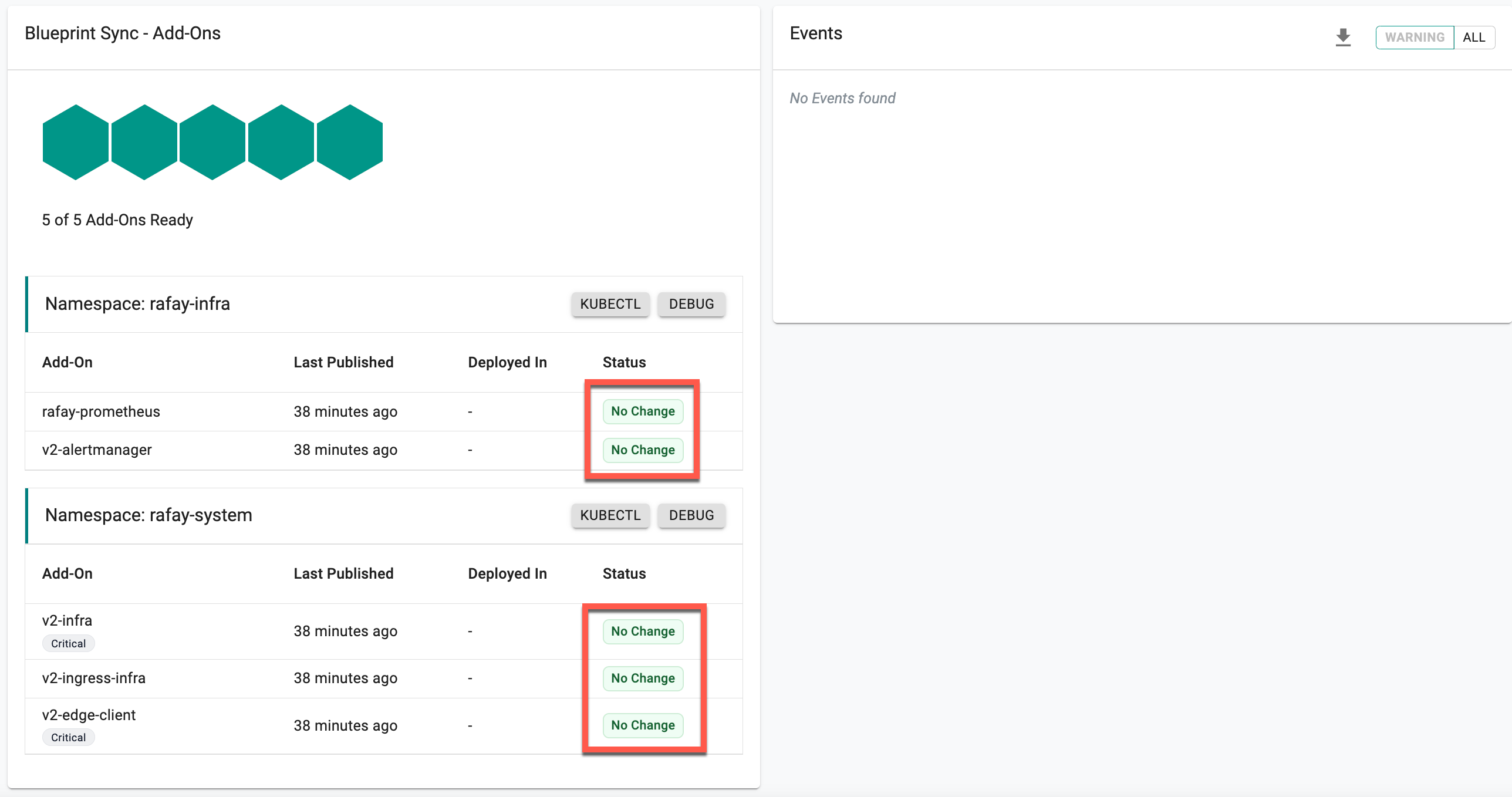
However, if an add-on failed in the previous sync, it will be retried in the next blueprint sync, even if it has not changed. Users also have the option to perform a Force Sync (Force Sync All Addons or Force Sync Selected Addons), which re-applies all, or specifically selected, add-ons regardless of whether they have been modified.
Failed Blueprint Sync
Blueprint Sync can fail if the user had misconfigured the cluster configuration (e.g. invalid Blueprint, versions or Add-Ons) or encountered storage limits for resources. When this occurs, red indication appears to show the sync failure. Hover over the red indication or Failed status icon to view the reason for sync failure
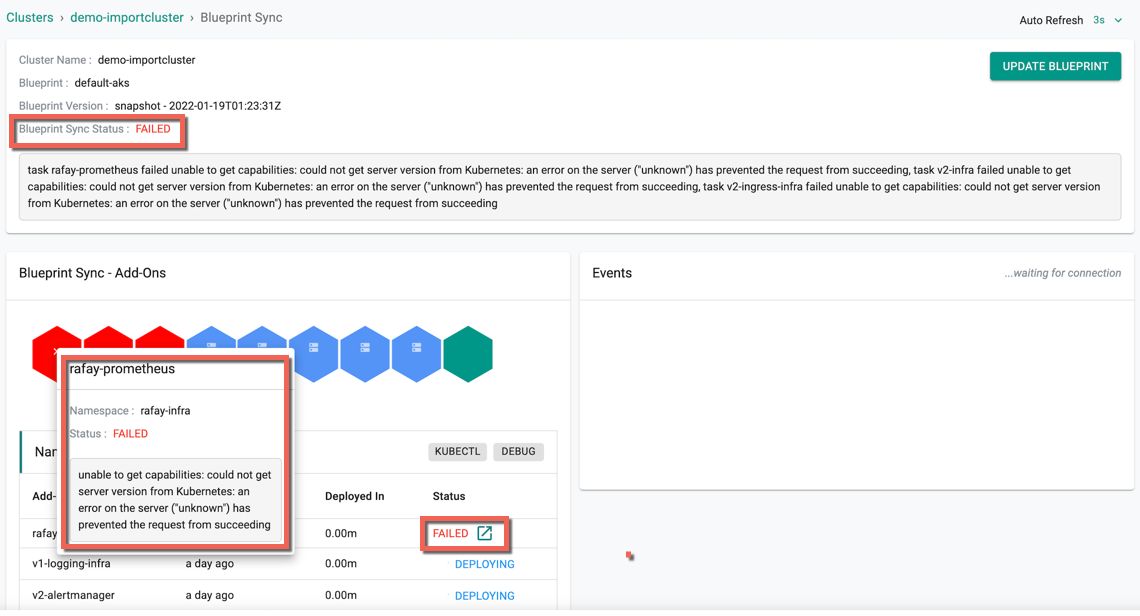
Users are allowed to edit the configuration and retry updating the Blueprint